1. Open Student Reports
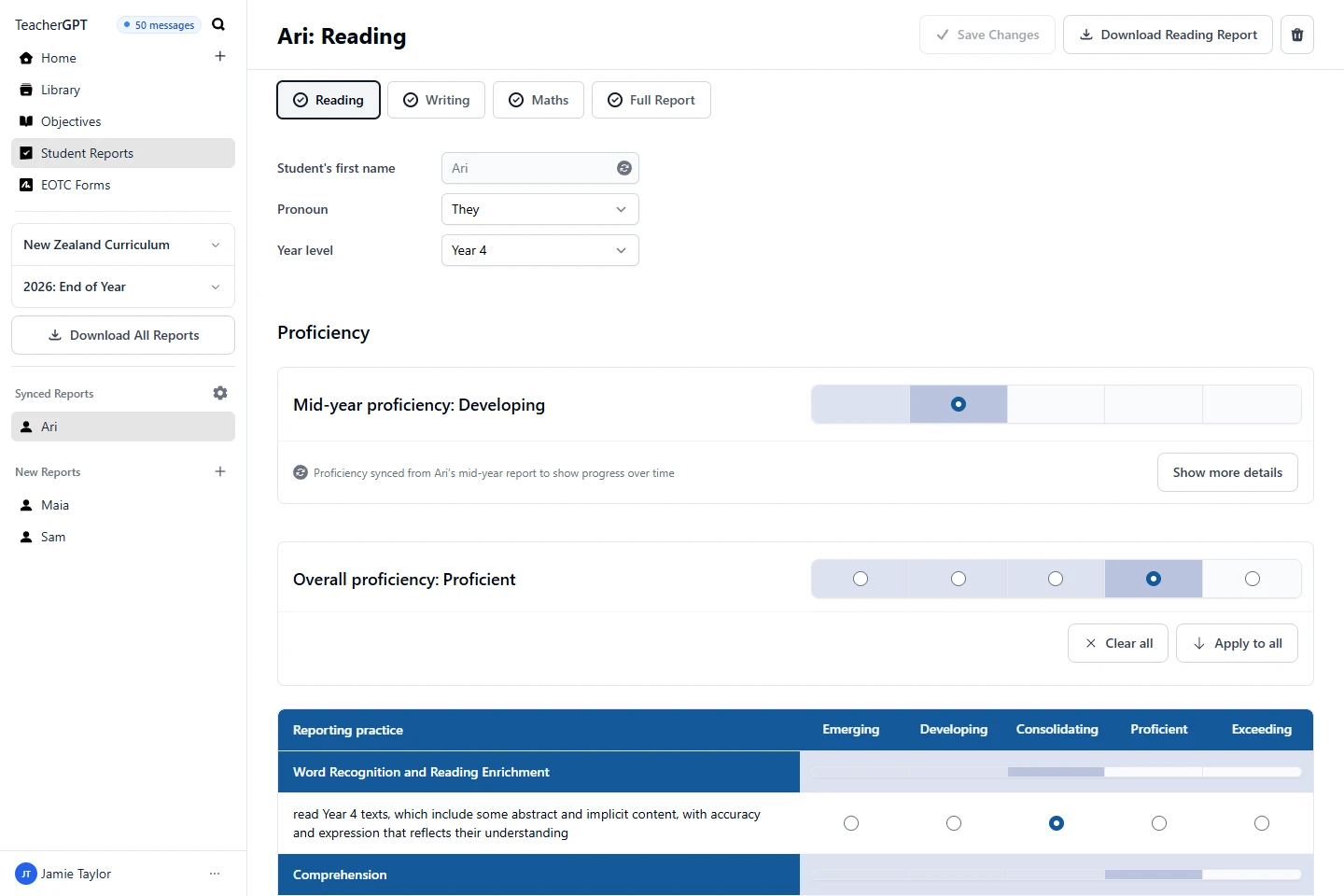
- Open Student Reports from the app navigation.
- Above the student list, select your curriculum.
- Select the report period, such as 2026: End of Year.
2. Create a student report
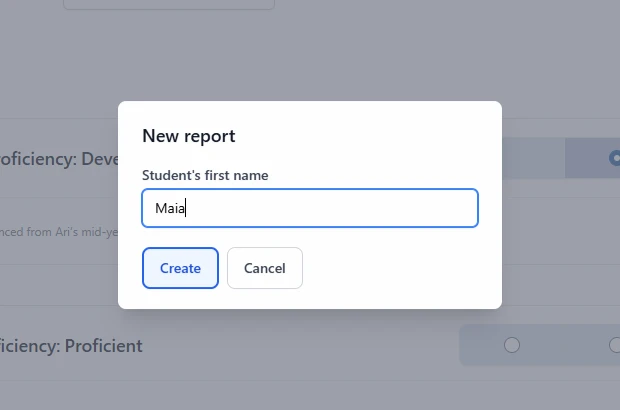
- Select + beside New Reports.
- Enter the student’s first name.
- Select Create.
For an existing report, select the student’s name in the list.
3. Switch students and subjects
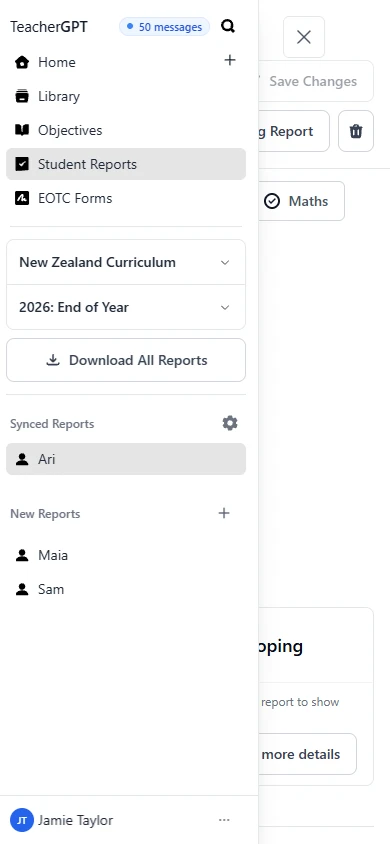
- Select a name in the student list to switch students.
- Select a subject tab, such as Reading, Writing or Maths, to switch subjects.
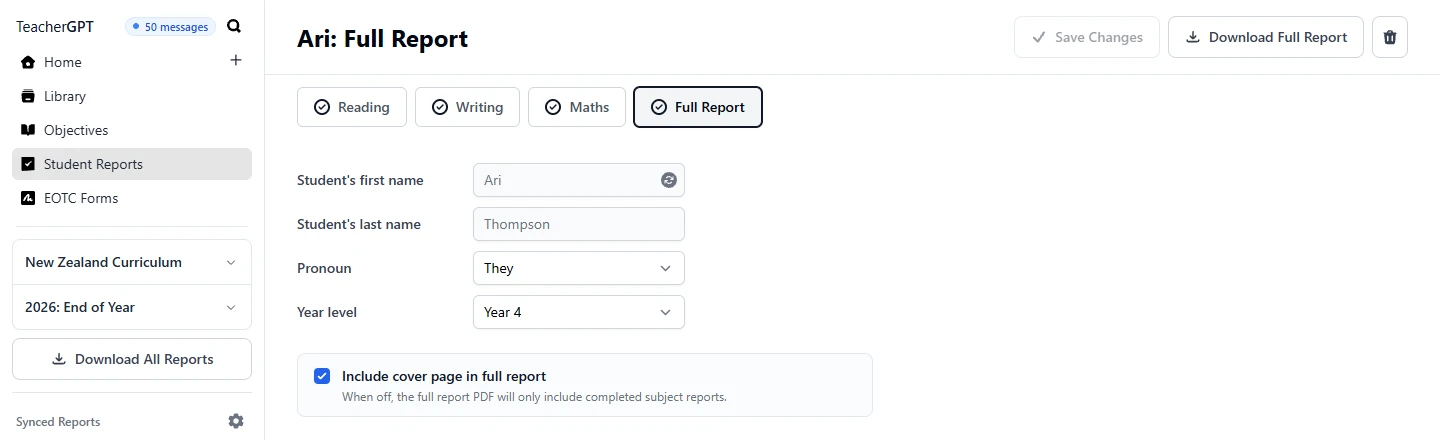
- Select Full Report for cover details and the combined report.
On a phone, open the menu to see the student list. Subject tabs are above the report. A tick marks a completed section.
4. Enter student information
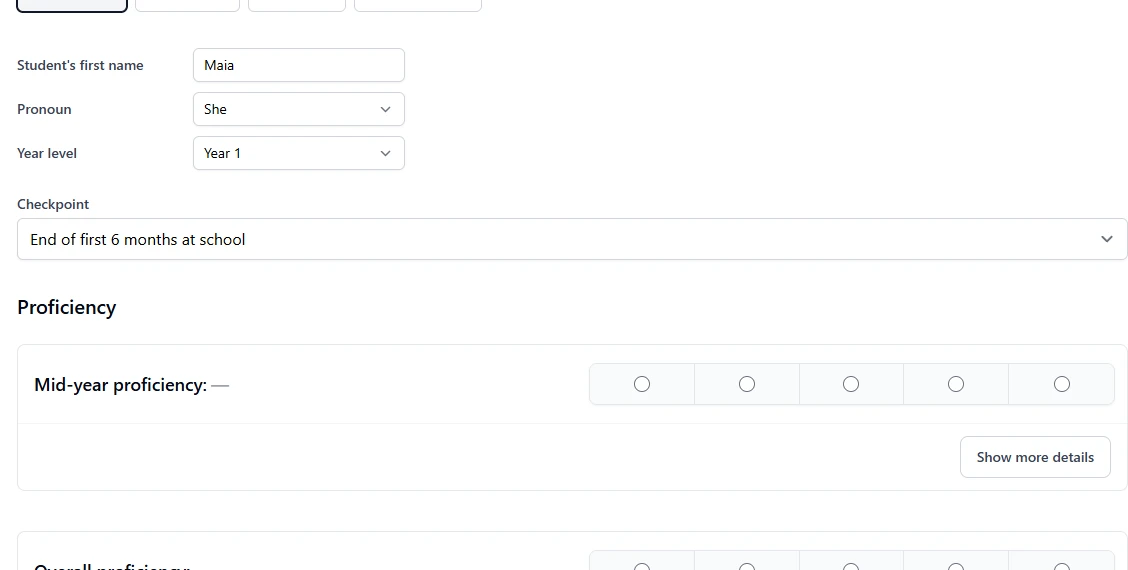
- Enter the student’s first name, pronoun and year level.
- If Checkpoint is shown, select the appropriate point in their schooling.
- Select Save Changes.
Student details apply across subjects. Add a last name in Full Report.
5. Set proficiencies
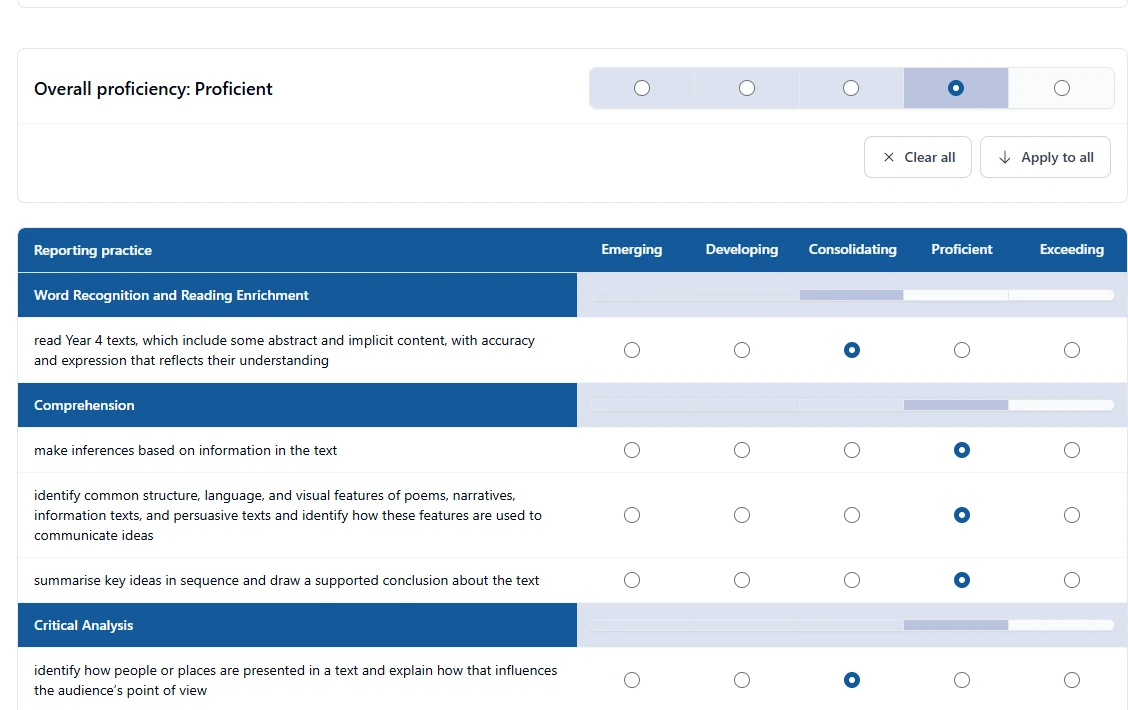
- Select a proficiency for each reporting practice you want to include.
- To use one level for all practices, select an Overall proficiency, then Apply to all.
- Adjust individual practices as needed.
- If shown, check or enter the student’s Mid-year proficiency.
If your report shows Teacher observations instead of ratings, select learning focus areas and enter observations.
6. Add teacher notes
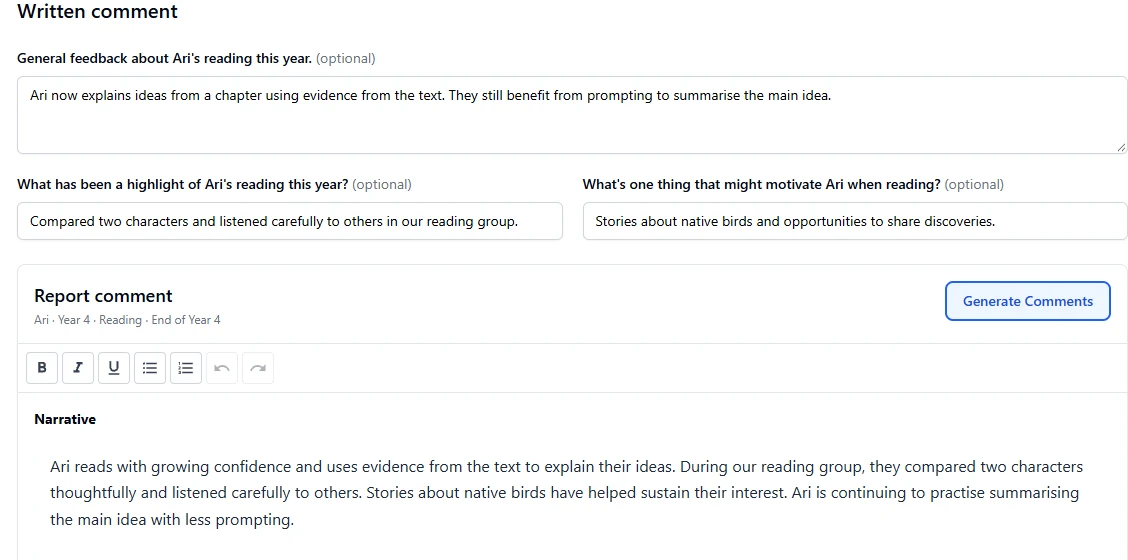
Under Written comment, fill in any of these optional fields:
- General feedback: strengths, progress and areas needing support.
- Highlight: a specific learning example.
- Motivation: interests that help the student engage.
7. Generate and edit comments
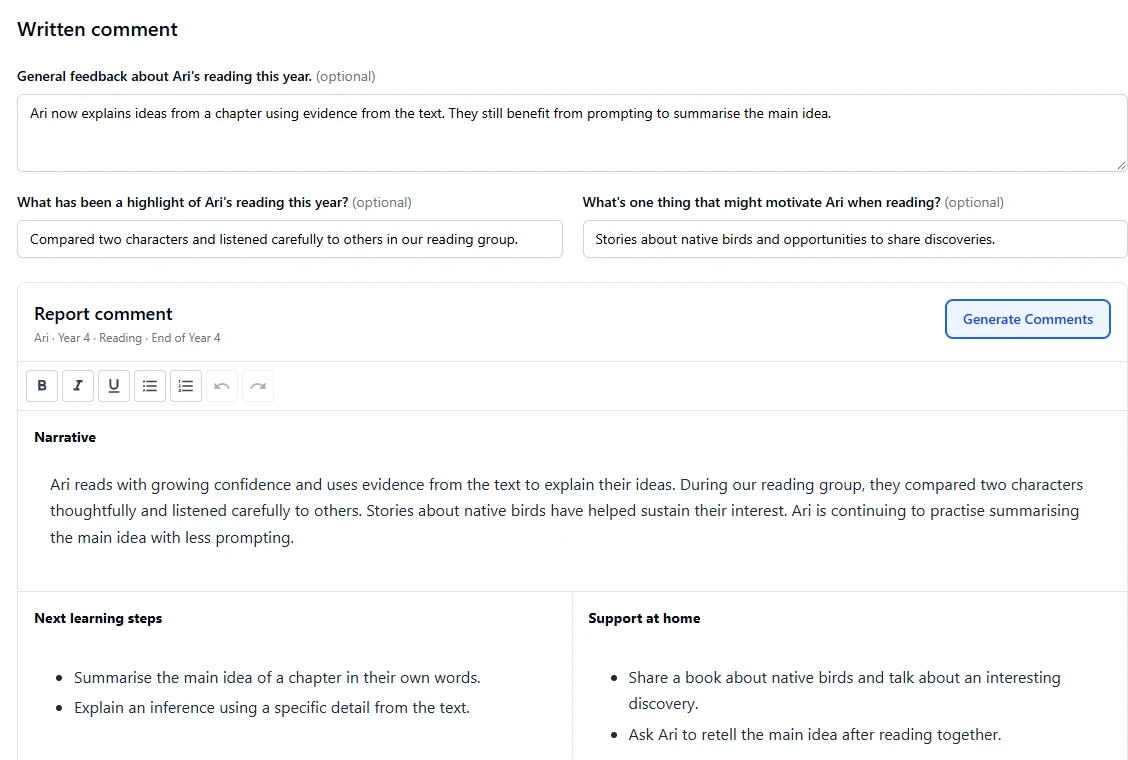
- Select Generate Comments.
- Read all three parts: Narrative, Next learning steps and Support at home.
- Click the text to edit it. Use the toolbar for formatting.
- Select Save Changes.
Generating again replaces the generated wording. Copy any text you want to keep before doing this.
8. Complete other subjects
- Select the next subject tab.
- Repeat steps 5–7 for that subject.
- Complete any extra school tabs. These may have report items to assess or comment boxes to write in.
For a school comment box, write directly or add notes and select its Generate Comments button.
9. Add a cover page (optional)
- Open Full Report.
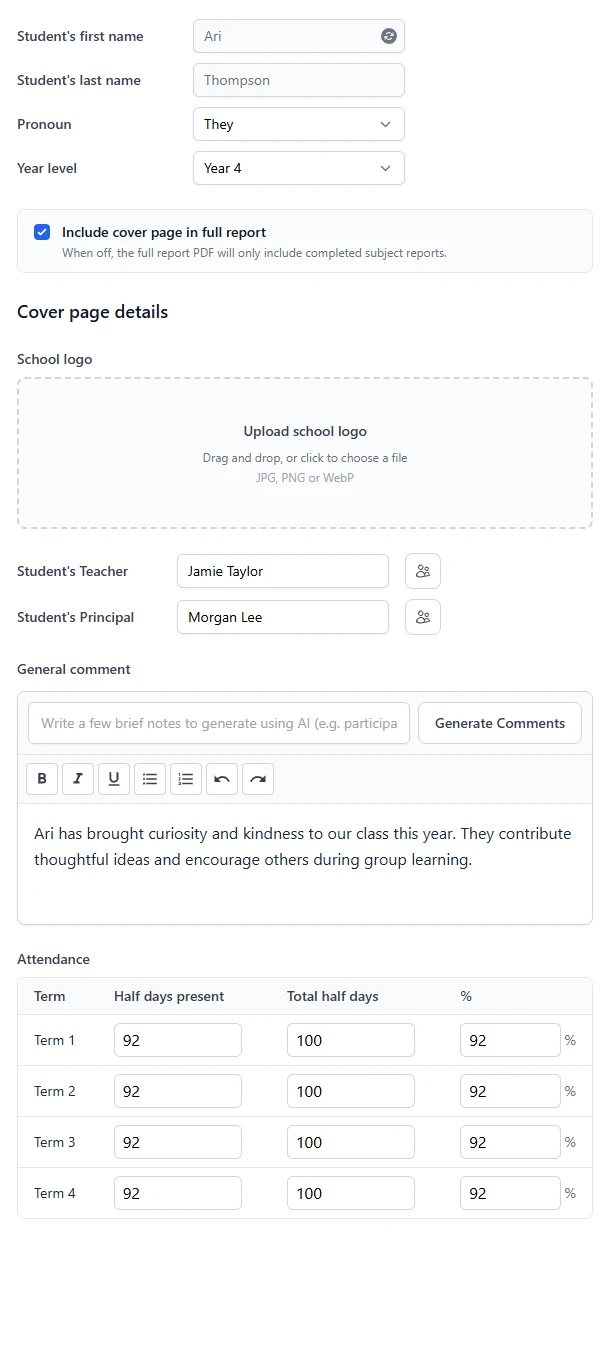
- Turn on Include cover page in full report.
- Check student details. Add a school logo, teacher and principal names as needed.
- Write a General comment, or enter notes and select Generate Comments. Review the result.
- Add Attendance and, if available, a Principal comment.
- Select Save Changes.
Leave the cover off to download completed subjects only. The cover setting and logo apply across your reports.
10. Download your reports
- One subject PDF
- Open the subject tab → Download [subject] Report.
- One student’s report pack
- Open Full Report → Download Full Report. This combines completed subjects and the cover, if enabled, into one PDF.
- All students
- Select Download All Reports above the student list. This downloads a ZIP of PDFs for the selected period and curriculum.
Change curriculum or reporting period
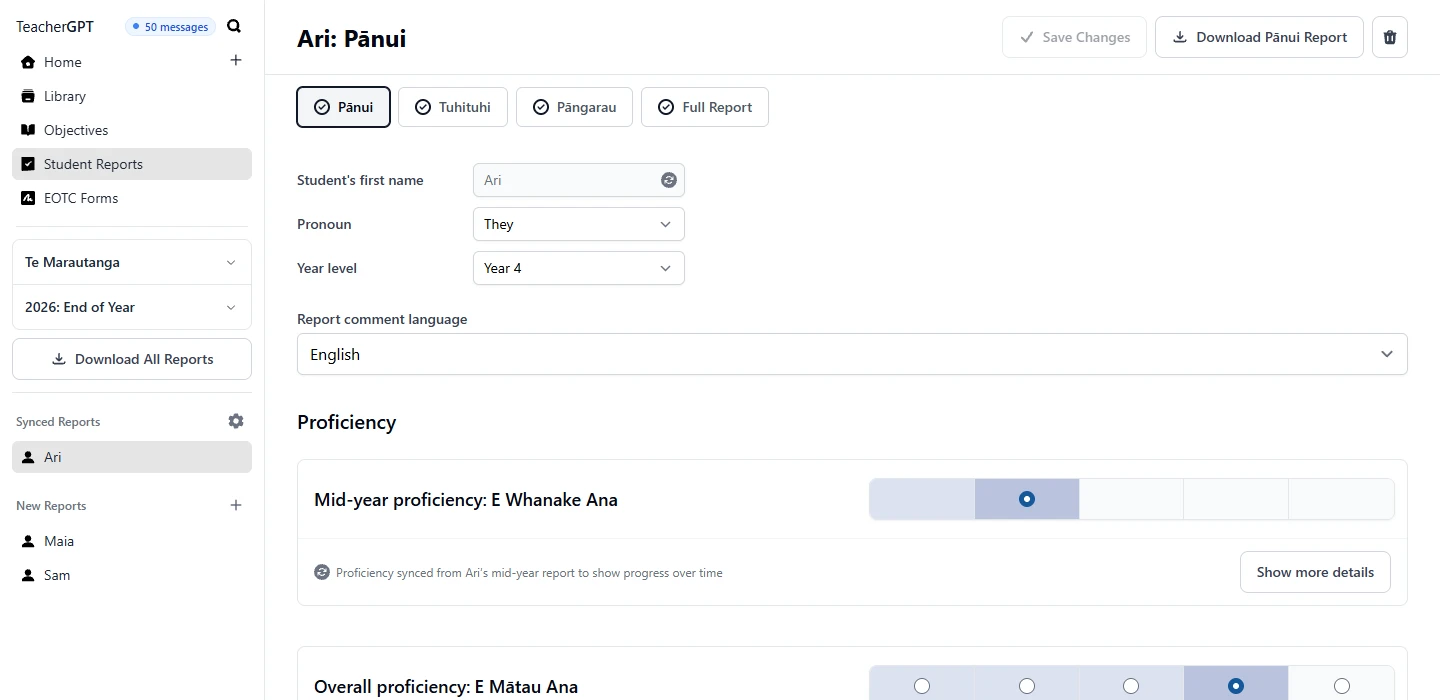
Te Marautanga
- Above the student list, change the curriculum to Te Marautanga.
- Open Pānui, Tuhituhi or Pāngarau.
- Set Report comment language to Te reo Māori or English, then complete the report.
Expanded Curriculum (ENZC)
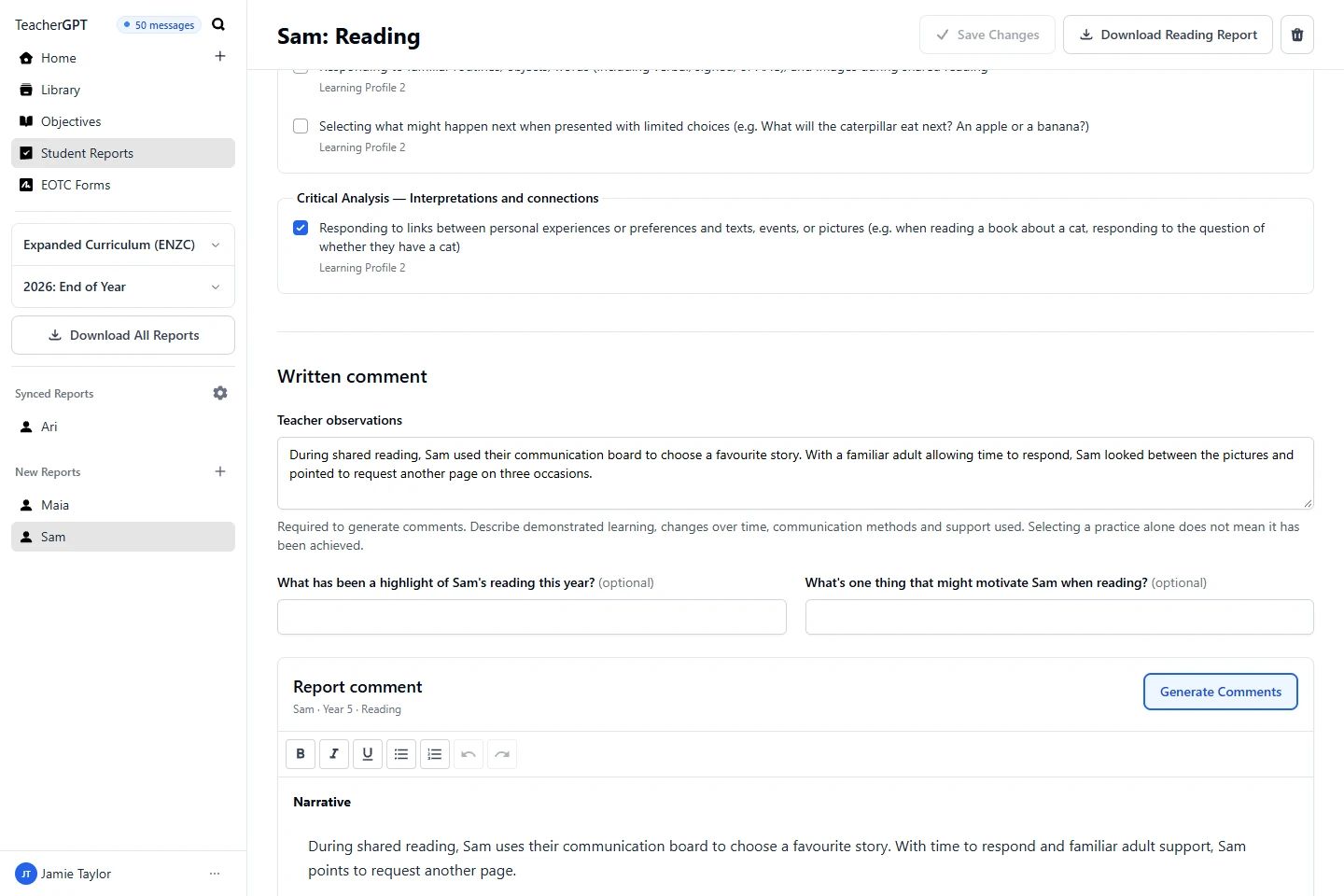
- Above the student list, choose Expanded Curriculum (ENZC).
- Open Reading, Writing, Maths, or Oral Language and Communication.
- Filter by Learning profile and select relevant learning focus areas. Changing the filter keeps your selections.
- Enter Teacher observations: what the student did, the context and support used.
- Generate, edit and save the comments.
Teacher observations are required for ENZC generation. ENZC uses observations instead of proficiency ratings; selected practices identify a learning focus, not demonstrated achievement.
Mid-year and end of year
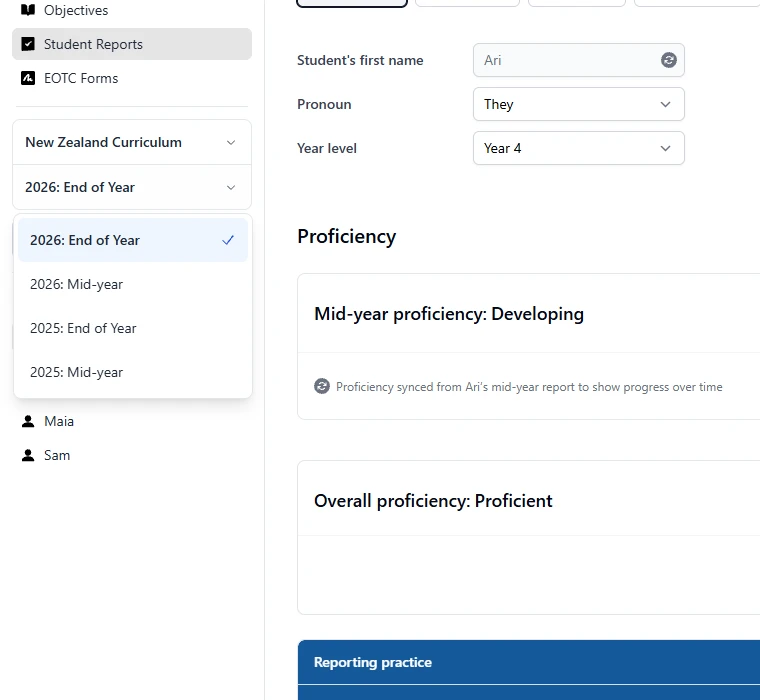
- Above the student list, select the period, such as 2026: Mid-year or 2026: End of Year.
- Select the student’s report for that period.
- To show or hide linked end-of-year reports, select the settings button beside Synced Reports, labelled Manage Synced Reports.
Linked names and mid-year proficiencies come from the mid-year report. Hiding a synced report keeps the original mid-year report.
Before you share
- Check student details, assessments and comments.
- Complete the required subjects and any cover details.
- Save changes, then open and check the downloaded PDF.
Troubleshooting
Generate Comments is unavailable
Check student details and any checkpoint. Select practices or ratings, and add Teacher observations if required.
A subject is missing from the download
Complete its assessments and comments, save, then download again. Full Report includes completed subjects.
I cannot find a report
Check the curriculum, reporting period and Teacher selector, if available. For linked reports, check Manage Synced Reports.
Cover fields are disabled
Open Full Report and turn on Include cover page in full report.
My edits are not saved
Select Save Changes and wait for Changes saved. If saving fails, stay on the page and retry before leaving or refreshing.